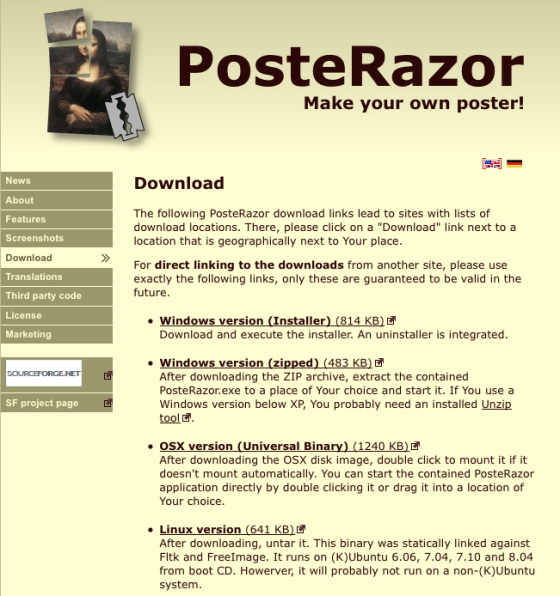
To make a file suitable for a Panel Poster, we need to pass an image through an application that will enlarge and dice it up across multiple pages contained in a single PDF document.


Be aware that safety is your responsibility.
Step 1: Select Image
PosteRazor is a free Macintosh, Windows, and Linux application that is the best option if your goal is to generate a poster at the highest quality possible. The input image can be as large as desired. We’ve been able to produce some highly detailed posters using this tool. (PIC 1-1, PIC 1-2, PIC 1-3)
Here's some guidelines to help you select an image:
- The file format can be JPG, GIF, BMP, PNG, TIFF, and many more.
- We recommend using images that are 1 MB or larger.
- The larger the image size, the better the outcome.
- The larger the final poster (number of panels), the larger the image should be.
For example, below are three posters that used images ranging from 1 MB up to 4.8 MB. All produced large posters with great image quality. (PIC 1-4, PIC 1-5, PIC 1-6) If you want to search the internet for an image, an easy way to find images that are large enough is to use Google's images search tool:
- Go to Google's Advanced Image Search tool.
- Enter your search term(s).
- Set the image size to at least "Larger than 1024 x 768".
- Click "Search images" button.
- Click on an interesting image to see it's size.

(PIC 1-1)

(PIC 1-2)

(PIC 1-3)

(PIC 1-4)

(PIC 1-5)

(PIC 1-6)
Step 2: Get a PDF viewer
You will need an application that can view and print PDFs. On Mac, you will use the "Preview" application located in your "Applications" directory. On Windows you will need to download and install a free PDF viewer like Adobe’s Reader.